
Both editions are configured under WooCommerce → Currency Switcher, but they are separate plugins with separate settings. The free edition keeps everything in one option, gmcswf_settings. The full edition keeps each setting in its own gatemi_csw_* option. The first half of this page is the free edition; the second half, marked Full edition, is the paid plugin.
Your base currency is never set here. It is WooCommerce's own currency, under WooCommerce → Settings → General → Currency. Your product prices are always entered in it.
Free edition
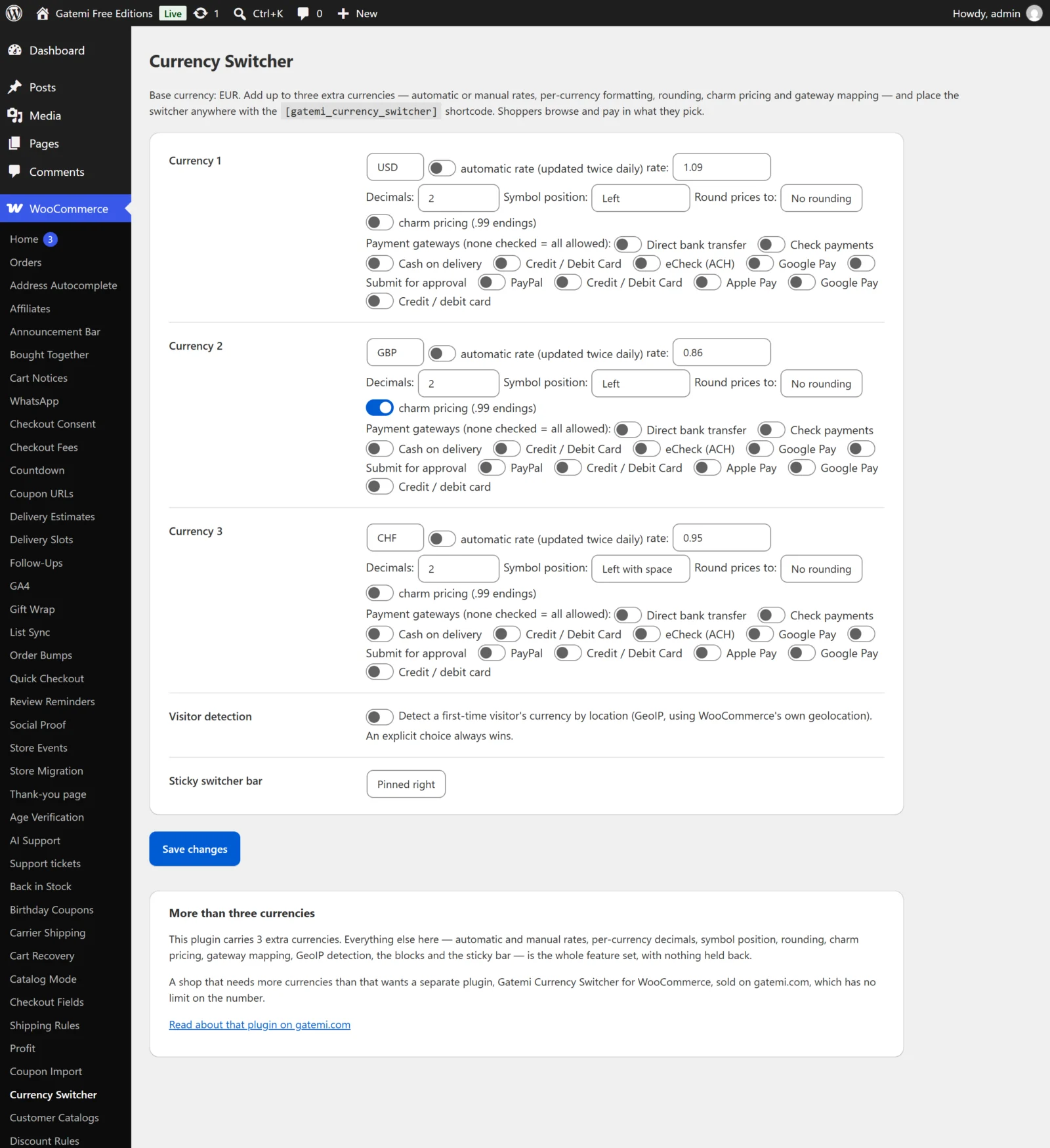
The screen has three rows, Currency 1 to Currency 3, then two settings for the whole shop. Press Save changes at the bottom. Saving also fetches the first rate for any new automatic currency straight away, so it does not wait for the next scheduled update.
Each currency is stored as one entry in gmcswf_settings['currencies'].
The currency code
- Key:
code· Default: empty - A three-letter ISO code, such as
EUR,USD,JPY. Stored upper case. - A row is dropped on save when the code is not three letters, or is your base currency (which already converts to itself).
- Only three rows are kept. That is the free edition's number of extra currencies.
automatic rate (updated twice daily)
- Key:
auto· Default: off (no) - Ticked, the rate is fetched for you twice a day and written into the row. Leave the rate box empty.
- A currency with this ticked but no rate yet is kept, but not offered to shoppers until its first rate arrives.
rate
- Key:
rate· Default: empty - How many units of this currency one unit of your base currency buys — the "1 GBP = 1.17 EUR" figure. Up to six decimal places.
- With automatic rate off, a row with no rate (or 0) is dropped on save: a currency with no rate converts to nothing.
- With automatic rate on, the box shows the last fetched rate.
Decimals
- Key:
decimals· Default: Store default (empty) 0–4. How many decimals prices in this currency show and are rounded to.0suits currencies such asJPYorHUF.- Store default uses WooCommerce's Number of decimals.
Symbol position
- Key:
position· Default: Store default (empty) - Left (
left), Right (right), Left with space (left_space), Right with space (right_space).
Round prices to
- Key:
rounding· Default: No rounding (empty) 0.05,0.10,0.50or1. A converted price is rounded to the nearest step. €11.73 rounded to0.50is €11.50.
charm pricing (.99 endings)
- Key:
charm· Default: off (no) - After rounding, the price is moved to the next whole number less one cent: €11.50 becomes €11.99, €12.00 becomes €11.99. Never below 0.99.
Payment gateways (none checked = all allowed)
- Key:
gateways· Default: none checked - Tick the payment methods offered when a shopper is in this currency. Only those are shown at checkout. With none ticked, every enabled method is offered. Use this for a gateway that does not support a currency.
Visitor detection
- Key:
geoip· Default: off (no) - Detect a first-time visitor's currency by location. Uses WooCommerce's own geolocation. A visitor from a country whose currency is one of your extra currencies starts in it.
- Only on a first visit: once a visitor has a currency cookie — from a choice or from an earlier guess — detection does not run again. A link the visitor followed always wins over detection.
- WooCommerce's geolocation must be working — see WooCommerce → Settings → General → Default customer location and its MaxMind integration.
Sticky switcher bar
- Key:
sticky· Default: Off (empty) - Pinned left (
left) or Pinned right (right) puts a small floating switcher on the edge of every storefront page. It only appears once at least one extra currency is active.
Full edition
The full edition's screen has five tabs: Currencies, Checkout, Display, Price rules and License. Each tab saves its own settings with its own Save changes button. The screen needs the manage_woocommerce capability by default (filter gatemi_csw_setting_cap).
Currencies
All currencies are stored together in the option gatemi_csw_options, one entry per currency.
- Enabled currencies — your base currency, then every currency you added. Press Add currency to add one; drag rows to reorder them (the order the switcher lists them in). Remove currency deletes a row.
- Exchange rate (
rate) — the rate for this currency. - Rate type (
rate_type) — Auto (updates hourly) (Auto, the default for a new currency) or Fixed (set by you). - Refresh rate — fetches a new rate now. The screen shows when rates were last updated (
gatemi_csw_rates_last_updated).
Currency settings (per currency, in a dialog):
| Field | Key | Default |
|---|---|---|
| Currency symbol position — Before the amount ($99), After the amount (99$), Before with a space ($ 99), After with a space (99 $) | currency_pos |
your WooCommerce setting |
| Thousand separator | thousand_sep |
your WooCommerce setting |
| Decimal separator | decimal_sep |
your WooCommerce setting |
| Number of decimals | num_decimals |
your WooCommerce setting |
| Fee type — Percentage of the rate, Fixed amount | fee_type |
fixed |
| Fee amount | fee |
0 |
The exchange fee is added to the rate itself: Final rate (base rate + fee). A rate of 1.17 with a 2% fee converts at 1.1934; with a fixed fee of 0.03, at 1.20. Use it to cover your payment provider's conversion costs.
Checkout
- Let customers pay in their selected currency —
gatemi_csw_checkout_diff_currency, default on (yes). On: the order is charged in the shopper's currency. Off: every order is charged in your base currency; shoppers still browse in theirs, and the cart, checkout and order show the base-currency amount beside it, with the notice "You will be charged in … Prices shown in … are estimates for your reference." - Payment methods —
gatemi_csw_checkout_options. For each currency, the payment methods offered. Empty means all.
Display
- Show a currency dropdown on product pages —
gatemi_csw_product_page_enable, default on. - Dropdown position —
gatemi_csw_switcher_position: Above/Below the product title, Above/Below the price, Above/Below the add-to-cart button. Default Below the price (after_price). - Sidebar design —
gatemi_csw_sidebar_design: Design 1 – card with the full currency list (card, default) or Design 2 – compact floating tab (compact). - Design 2 – row color and Design 2 – selected row color —
gatemi_csw_design2_default_color(default#1E293B) andgatemi_csw_design2_active_color(default#0B1120). - Show the sidebar on these pages —
gatemi_csw_sidebar_pages: Home, Shop, Product pages, Product category pages, Cart, Checkout. Default Shop, Cart and Checkout. - Sidebar position —
gatemi_csw_sidebar_position: left or right (default right). - Add the switcher to your navigation menu — drag the Gatemi Currency Switcher item into a menu under Appearance → Menus.
- Show the menu item on these pages —
gatemi_csw_menu_pages. Default Shop, Product pages, Cart and Checkout. - Start visitors in their local currency —
gatemi_csw_enable_geolocation, default on.
Price rules
Stored in gatemi_csw_price_adjustment_settings. Six price ranges — 0–9.99, 10–99.99, 100–499.99, 500–999.99, 1000–9999.99 and 10000+ — each with:
- Enable — whether the rule applies.
- Rounding — round up to the nearest 1, 5, 10, 50 or 100, or to the nearest 99. Larger ranges offer larger steps.
- Price ending —
.99,.95,.49or No ending. - Try a price — a sample price, with the Result shown beside it.
Price rules only change prices shown in converted currencies. Prices in your base currency are never touched.
License
Paste the key from your gatemi.com account and press Activate. The tab shows the status, how many sites the key is in use on, and a Deactivate on this site button. A failed connection to gatemi.com never changes the status. The state is stored in gatemi_csw_license.