
Gatemi Currency Switcher lets shoppers see your prices in their own currency, and pay in it. You keep your prices in your store's base currency; the plugin converts them at an exchange rate you choose or one fetched for you.
There are two editions, and this manual covers both:
- Gatemi Currency Switcher — the free edition. Up to three extra currencies, each with an automatic or a fixed rate, its own decimals and symbol position, rounding, .99 endings and its own payment methods. Location-based detection, a sticky switcher bar, two blocks and a shortcode.
- Gatemi Currency Switcher for WooCommerce — the full edition, sold on gatemi.com. Any number of currencies, hourly rate updates, an exchange fee per currency, price rules by price range, a currency dropdown on the product page, a sidebar and a menu-bar switcher, and the choice to charge every order in your base currency.
The two editions are separate plugins with their own settings. See Moving to the full edition below.
Requirements
| Free edition | Full edition | |
|---|---|---|
| WordPress | 6.4 or later | 6.6 or later |
| PHP | 7.4 or later | 7.4 or later |
| WooCommerce | 8.0 or later (tested up to 10.9) | 3.0 or later (tested up to 10.9.1) |
Both editions declare compatibility with High-Performance Order Storage (HPOS) and the Cart and Checkout blocks.
Automatic rates are fetched from two outside services: gatemi.com's exchange-rate endpoint first, and open.er-api.com as a fallback. Only the two currency codes are sent. Fixed rates need no outside service.
Install
Free edition
The free edition is coming to wordpress.org. Until it is listed, it cannot be installed from Plugins → Add New.
Full edition
- Buy the plugin on the Currency Switcher product page.
- Download the zip from your gatemi.com account.
- Go to Plugins → Add New → Upload Plugin, upload the zip, and activate it.
- Go to WooCommerce → Currency Switcher, open the License tab, paste your licence key and press Activate. The plugin works without a key; the key switches on one-click updates and support.
If the free edition is also active, it stands down and says so in a row under its entry on the Plugins screen. Deactivate it.
First setup — free edition
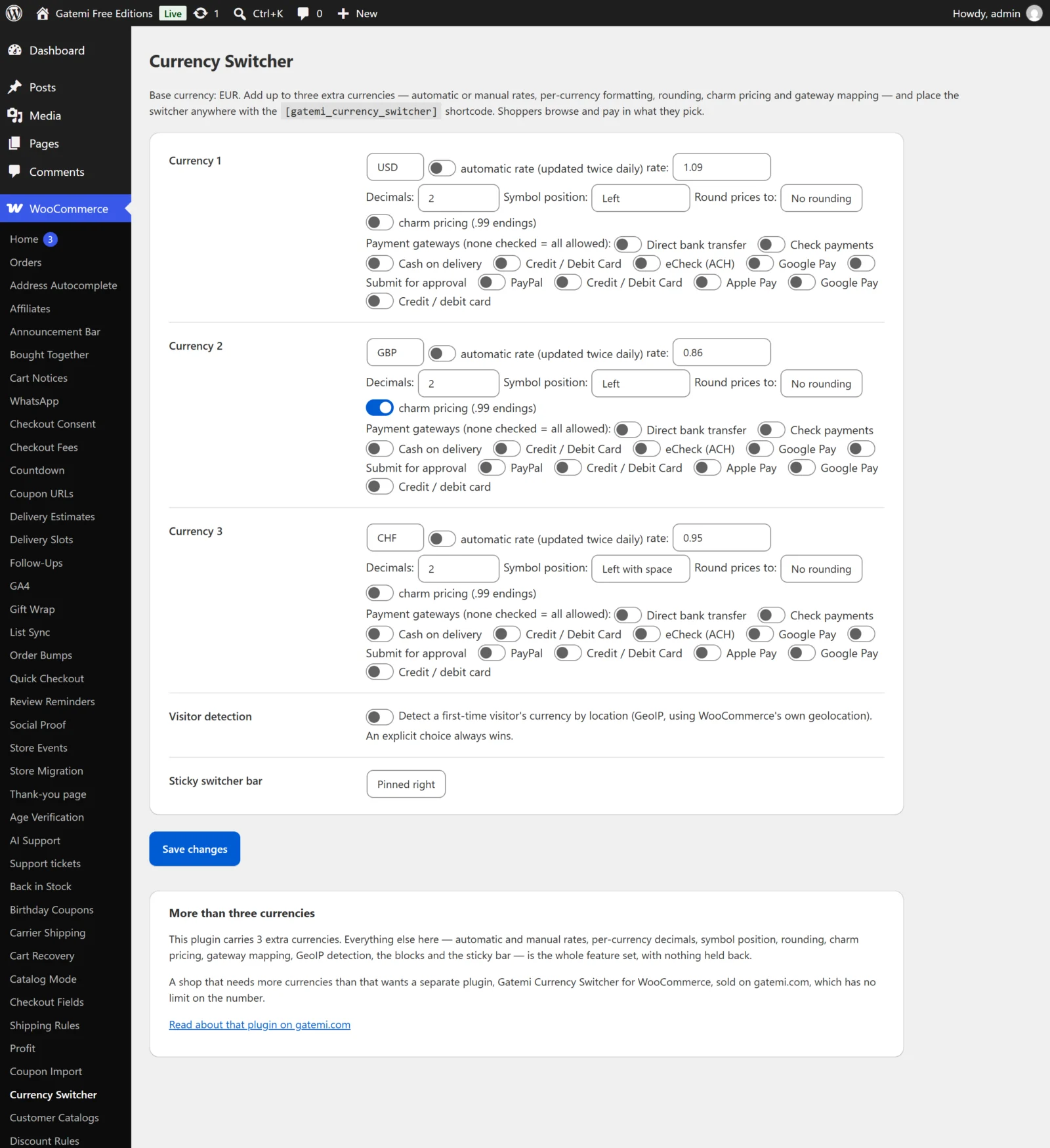
- Go to WooCommerce → Currency Switcher. The top of the screen shows your base currency — the one set under WooCommerce → Settings → General.
- In Currency 1, type a three-letter currency code, such as
EUR. - Choose how it gets its rate:
- Tick automatic rate (updated twice daily) and leave the rate box empty; the first rate is fetched when you save.
- Or leave it unticked and type a rate: how many of this currency one unit of your base currency buys. With a GBP shop,
1.17for EUR means £10.00 is shown as €11.70.
- Optionally set Decimals, Symbol position, Round prices to, charm pricing and the Payment gateways for that currency. See Settings.
- Choose Sticky switcher bar: Pinned right (or left) so shoppers have a switcher on every page.
- Press Save changes.
Show the switcher
The sticky bar is the quickest. You can also place a switcher yourself:
- Block: in the block editor, add Currency Switcher (or Currency Switcher Sticky Bar).
- Shortcode:
[gatemi_currency_switcher]in any page, post or widget.
First setup — Full edition
- Go to WooCommerce → Currency Switcher → Currencies.
- Press Add currency, pick the currency, and choose Rate type: Auto (updates hourly) or Fixed (set by you).
- Open Currency settings on its row to set the price format and an exchange fee if you want one.
- Press Save changes.
- On the Display tab, turn on the product-page dropdown, the sidebar or the menu-bar item.
- On the Checkout tab, decide whether customers pay in the currency they picked.
Check it works
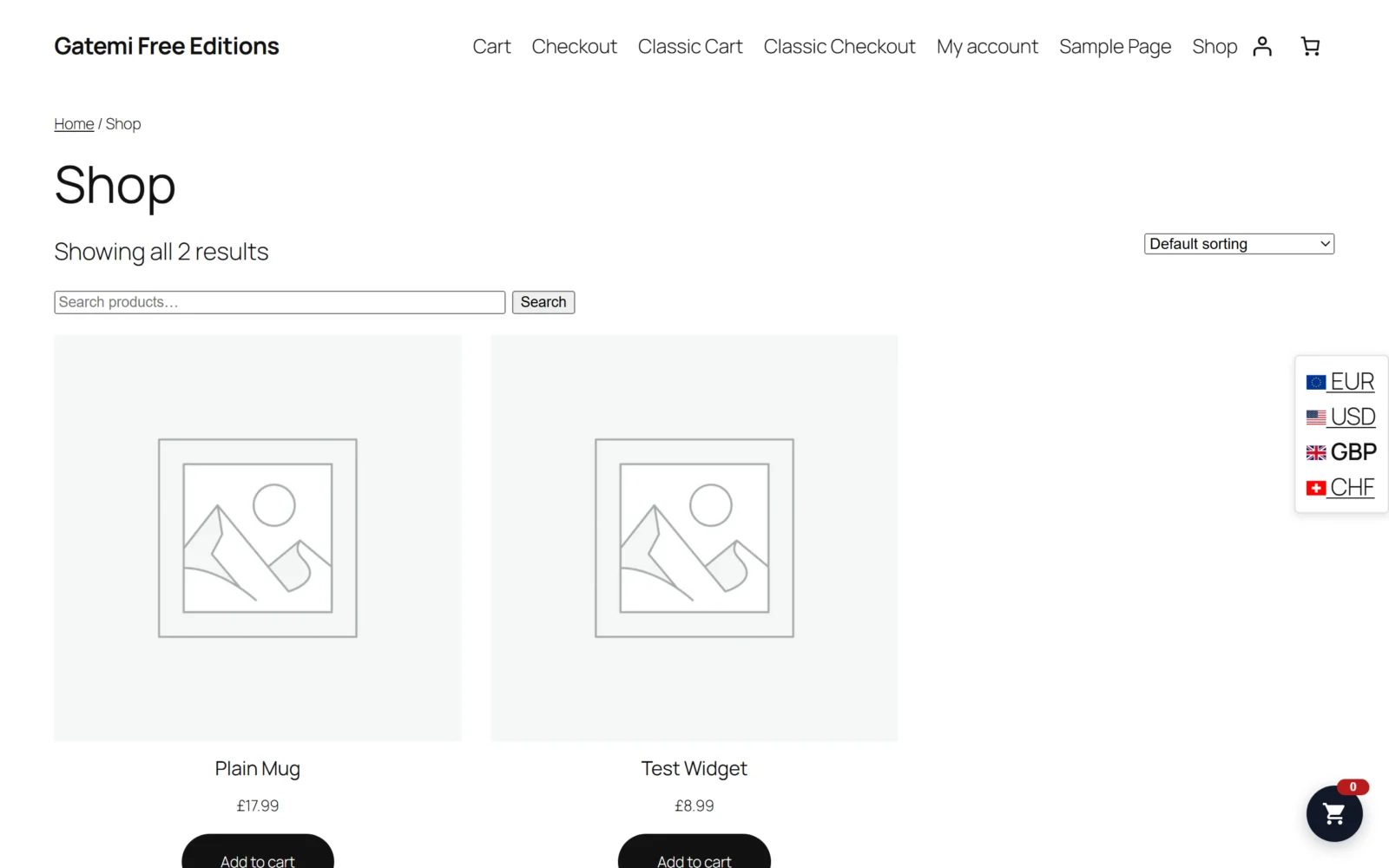
- Open your shop in a private browser window.
- Click a currency in the switcher. The page reloads with prices converted and the currency's symbol.
- Add a product to the cart and open the checkout. The cart is in the chosen currency, and only that currency's payment methods are offered if you limited them.
- Place a test order. On the order screen it shows in the chosen currency, and the exchange rate used is stored on the order (see the Developer reference).
If the switcher does not appear, see FAQ and troubleshooting.
Moving to the full edition
When the full edition first loads with no currencies of its own, it copies the free edition's currencies (codes, rates, automatic or manual, symbol position, decimals), the GeoIP choice and each currency's gateway mapping. Charm pricing comes across as a store-wide .99 price rule when every currency had it on with no rounding increment; otherwise set rounding and charm pricing on the Price rules tab. The two blocks have the same names in both editions, and the full edition also renders the free edition's [gatemi_currency_switcher] shortcode, so pages keep working.