
These docs cover both editions:
- Gatemi Bought Together — the free edition, coming to wordpress.org.
- Gatemi Bought Together for WooCommerce — the full edition, sold on gatemi.com.
Anything marked Full edition is only in the paid plugin. Everything else is in both.
The plugin puts a "Frequently bought together" box under a product: the product itself, the companions you chose for it, a checkbox beside each, a running total and one button that adds the ticked products to the cart.
Requirements
| Free edition | Full edition | |
|---|---|---|
| WordPress | 6.4 or later | 6.4 or later |
| PHP | 7.4 or later | 7.4 or later |
| WooCommerce | 8.0 or later (tested up to 10.9) | 8.0 or later (tested up to 10.9) |
Both editions declare compatibility with WooCommerce's High-Performance Order Storage (HPOS) and with the Cart and Checkout blocks. No database tables are created.
1. Install
Free edition: coming to wordpress.org. Until it is listed there, it is not available to install from Plugins → Add New.
Full edition: download the zip from your gatemi.com account, then go to Plugins → Add New → Upload Plugin, upload it and activate. Open WooCommerce → Bought Together and enter your licence key in the License & updates card to switch on one-click updates. The plugin works without a key; the key is for updates and support.
You only need one edition. If both are active, the free edition stands down and says so in a row under its entry on the Plugins screen: "the full edition of Gatemi Bought Together is active and running your sets. You can safely deactivate the free one." Both read the same sets and the same settings, so nothing is lost.
2. Check the store-wide settings
Go to WooCommerce → Bought Together (you need the manage_woocommerce capability — shop managers and administrators have it).
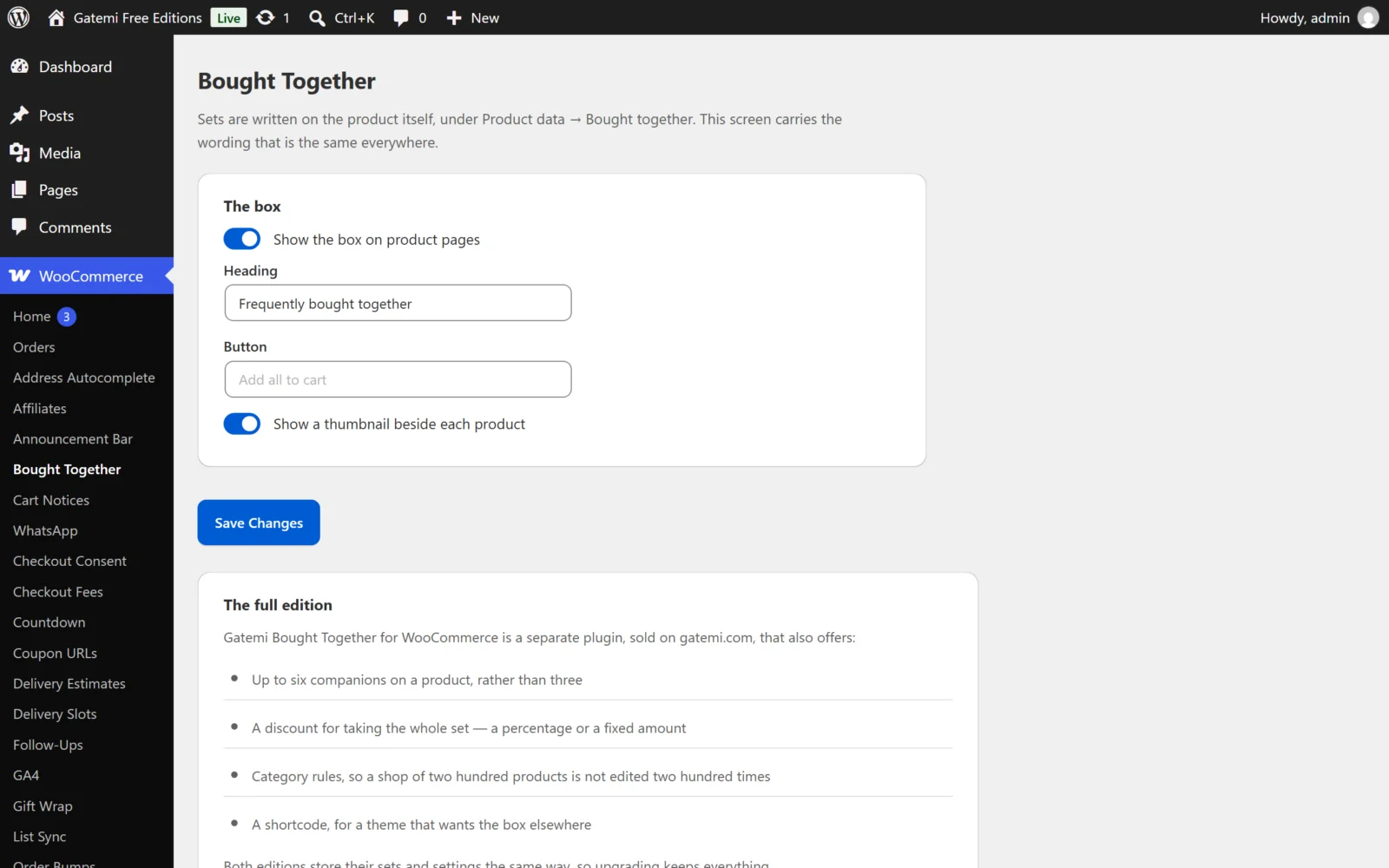
The defaults work as they are: the box is on, the heading reads "Frequently bought together", the button reads "Add all to cart", and each row shows a thumbnail. Change any of them and press Save Changes (in the full edition, Save changes). See Settings for each one.
3. Give a product its companions
Sets are written on the product itself.
- Go to Products and edit the product the box should appear on.
- In the Product data box, open the Bought together tab.
- In Bought together with, type the ids of the products that go with it, separated by commas, for example
112, 118, 240. A product id is the number in the address bar (post=112) when you edit that product. - Update the product.
The free edition takes up to three companions per product; the full edition up to six.
Name simple products or specific variations. A variable product (the parent) needs a choice the box does not ask for, so if you name one it is left out of the box. To offer "the blue mug, large", find that variation's id and type that.
Full edition: in the same tab, choose a Discount for taking the set (a percentage or a fixed amount) and type the Amount. See How it works for when the discount is earned and when it comes off again.
4. Check the product page
Open the product in a private window. Under the product summary (before the description tabs, on a standard theme) you should see the box:
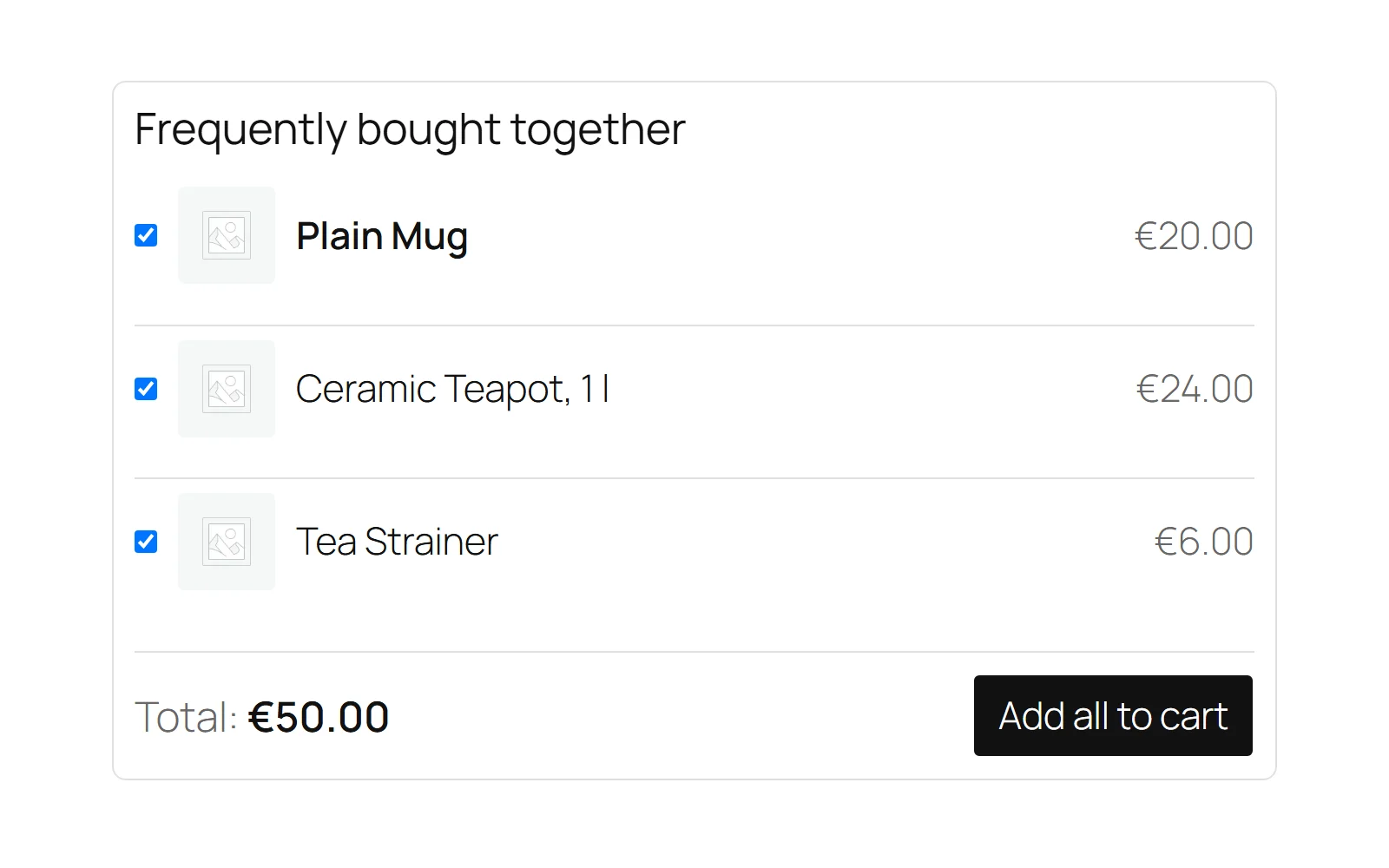
- Every row starts ticked. Untick one and the total changes.
- Press Add all to cart. A message under the button says how many products were added, and the mini-cart refreshes.
- Open the cart. Each line added from the box carries the note Bought together: Part of a set.
If no box appears, see FAQ and troubleshooting — the most common reason is that every companion is out of stock, unpublished or a variable product, or that the product itself is variable or out of stock — in each case the plugin shows no box at all.
Full edition: rules for whole categories
Under WooCommerce → Bought Together → Category rules you can give every product in chosen categories (sub-categories included) the same companions, so you do not have to edit each product. A product with a set of its own ignores every rule. The full edition also has a [gatemi_bought_together] shortcode for placing the box somewhere else.
Next
- Settings — every setting, its key and default
- How it works — the rules behind the box and the discount
- FAQ and troubleshooting
- Developer reference