
Both editions have one screen: WooCommerce → Back in Stock (capability manage_woocommerce).
Free edition: no settings
The free edition has nothing to configure, so its screen has no form and no Save button. It always behaves like this:
| Behaviour | Free edition |
|---|---|
| Waitlist form | On every out-of-stock, purchasable, non-external product |
| Address confirmation | Always on (a signed-in customer using their own address is confirmed straight away) |
| Button text | "Email me when it is back" |
| Email subject | "Product name is back in stock" |
| Email body | "Good news — product is available again at site name." followed by the product link and an unsubscribe link |
| Emails per sweep | 50 |
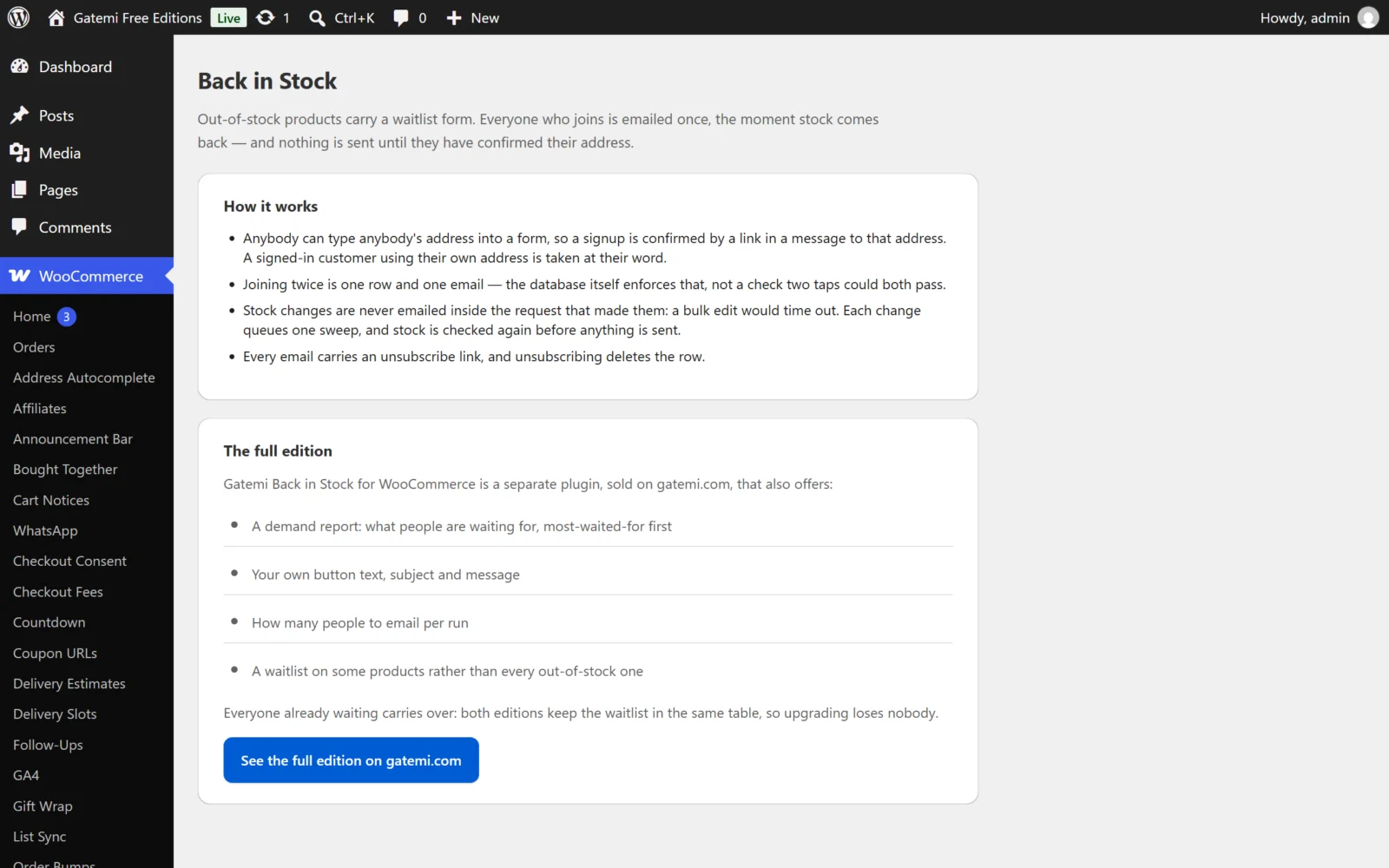
Confirmation is not a setting in the free edition because it is the consent rule: anybody can type anybody's address into a form, so nothing is sent until a link in a message to that address is opened.
Full edition settings
The full edition stores six settings in one option, gmbis_settings. They are on the same screen, below the demand report, in two cards.
The waitlist
Offer a waitlist on out-of-stock products — Full edition
- Key:
enabled· Default: on (yes) - Turned off, no form is shown anywhere. People already on the list are still emailed when stock returns — the sweep does not read this switch.
Ask people to confirm their address first — Full edition
- Key:
double_opt_in· Default: on (yes) - On: a new signup is stored as pending and a confirmation email is sent. Nothing else is sent to that address until the link is opened.
- Off: signups are confirmed immediately. Only turn this off if you have another way of knowing the address belongs to the person who typed it.
- A signed-in customer using their own account address is always confirmed straight away, whatever this says.
Button text — Full edition
- Key:
button_label· Default: empty, shown as "Email me when it is back" - Plain text. Empty restores the default.
How many to email per run — Full edition
- Key:
batch· Default:50· Range: 1–500 - How many waiting people one sweep emails for one product. Values outside the range are clamped on save.
- A sweep handles one batch. If more people are waiting than one batch holds, the rest are emailed by the next sweep for that product — which is scheduled by the next stock change. On a product with a long waitlist, raise this number rather than relying on further stock changes.
The email
Subject — Full edition
- Key:
subject· Default: empty, shown as "{product} is back in stock"
Message — Full edition
- Key:
body· Default: empty, shown as "Good news — {product} is available again at {site}." followed by a blank line and{link}. - Plain text; line breaks are kept.
Placeholders in both the subject and the message:
| Placeholder | Replaced with |
|---|---|
{product} |
The product's name |
{site} |
Your site title (Settings → General) |
{link} |
The product's page address |
An unsubscribe line is always added to the end of the message. You cannot remove it from this screen: a marketing-style message somebody cannot get out of is a complaint waiting to happen.
The confirmation email ("Confirm: tell me when product is back") is not editable in either edition.
The demand report — Full edition
The top card, What people are waiting for, lists the products people are waiting for, most-waited-for first, with:
- Product — linked to the product editor (a product deleted since somebody joined still appears, by id).
- Waiting — pending plus confirmed signups.
- In stock now — Yes or No.
Up to 50 products are shown. It is the list to reorder from.
License & updates — Full edition
Enter the GM-XXXXX-… key from your gatemi.com account and press Activate. The card shows the licence status, the renewal date and how many sites use the key. If gatemi.com cannot be reached during a check, your licence state is left unchanged and the check retries on its own. Without a key the plugin makes no external requests at all.
For developers
The full edition's screen ends with a table of the filters it applies. They are documented in the developer reference.